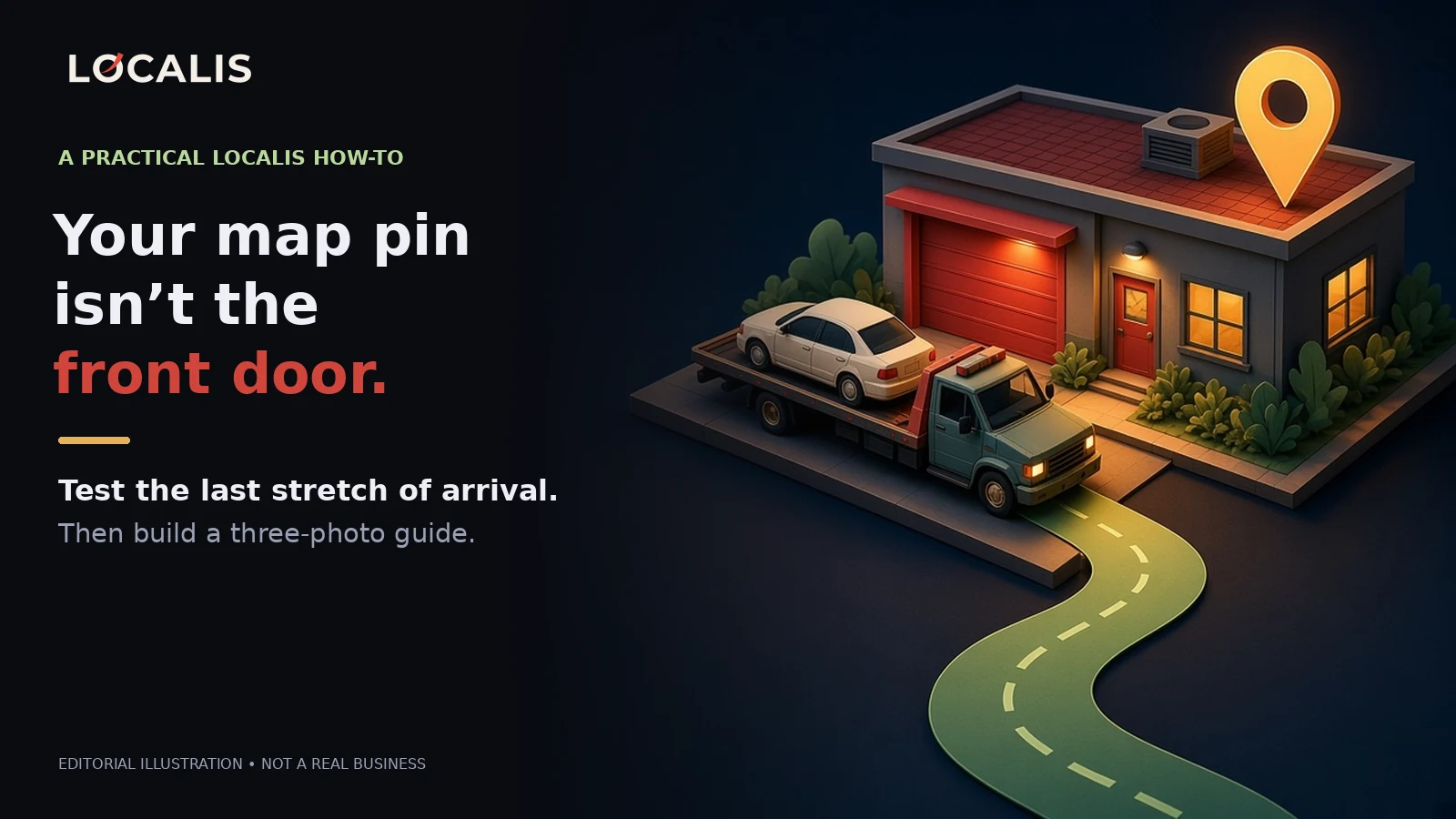
A navigation app's job ends with "You have arrived."
Your customer's job doesn't.
They're in a car that's making a noise it shouldn't. Or they're following the tow truck that has their car on it. They pull up to your address and see: a chain-link gate, three roll-up doors, an office door with no sign, and a guy in coveralls who looks busy.
Which way?
That last stretch, from the curb to the person who actually checks them in, isn't something a map pin solves. It's something you can test this week.
First, who this is for
This exercise is for businesses where customers actually show up: repair shops, body shops, tow yards with vehicle release or drop-off, storefronts.
If you're a service-area business that goes to the customer and doesn't receive visitors, skip this one. Google's own guidance says service-area businesses can choose not to show their address and list a service area instead (Google Business Profile Help: Manage your business address). Don't publish your home or yard address just to make an arrival guide.
Two problems that look like one
When customers get lost, people say "the pin is wrong." Sometimes it is. Often it isn't. There are two different problems here:
- The pin is on the wrong spot. The marker isn't on your business at all. That's a profile fix. Google lets you adjust your pin when the address can't be found or the location isn't accurate (same help page).
- The pin is right, but the arrival is confusing. The marker is on your building, and customers still end up at the wrong gate, the wrong door, or the back lot. That's not a pin problem, and moving the pin to "steer" people would make your listing less accurate.
If a turn in Google's directions is actually wrong (say, a no-left-turn street, or a road that's been closed), report that step directly. Google has a process for reporting incorrect driving directions to your business (Google Business Profile Help).
Everything else, which is most of it, is the last stretch. That's the part we'll test.
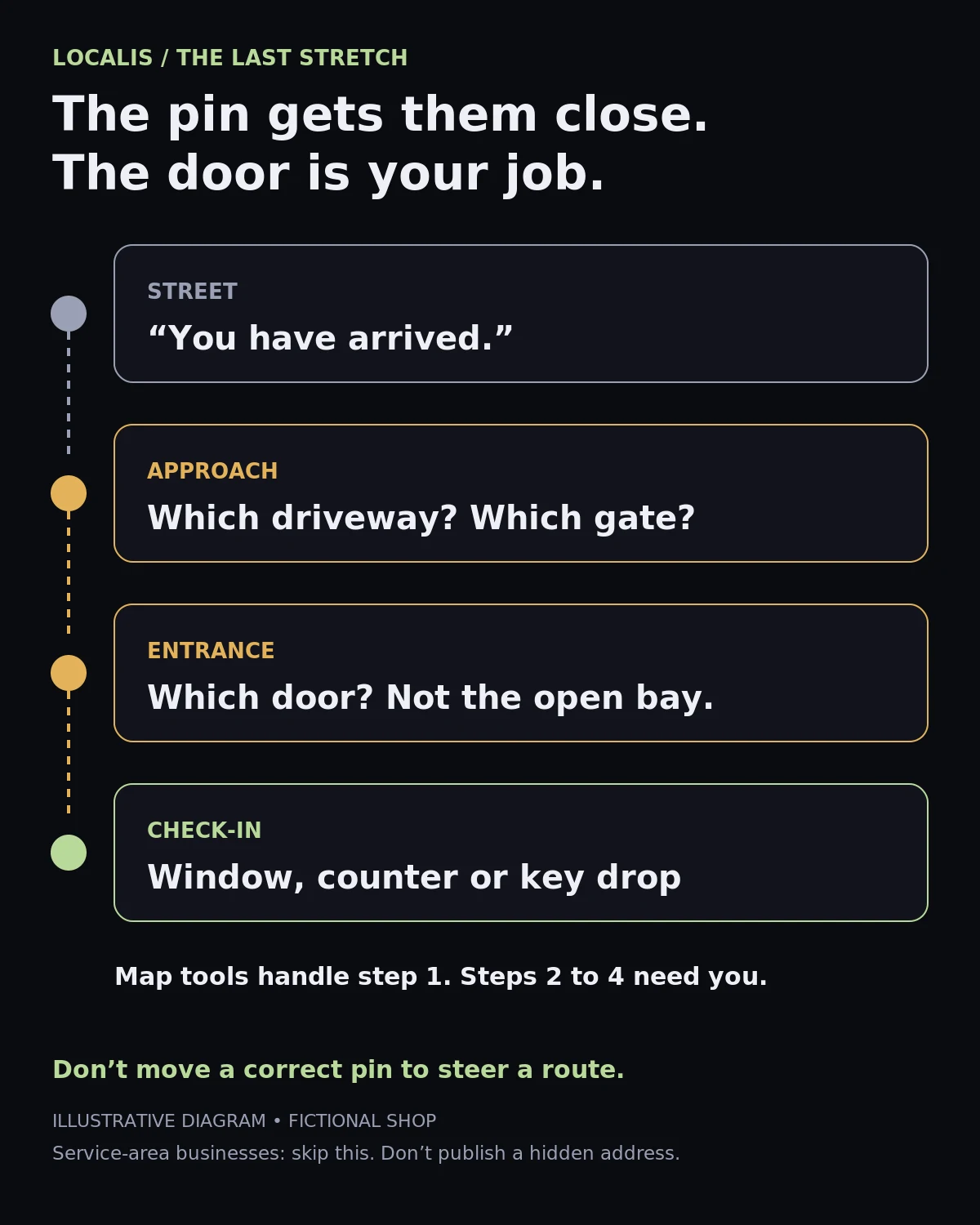
The arrival test (about 30 minutes)
You'll need: one person who has never been to your shop (a friend, a relative, a new hire on day one), a phone, and a few minutes of your time.
Do this:
- Send them the exact link or directions your customers actually get: your Google listing, your website's contact page, or the text your front desk sends.
- Have them drive or walk it at a normal time of day. You don't go with them.
- Ask them to talk out loud, or text you a voice memo, at every moment they hesitate.
- When they reach your property, they keep going until they're standing in front of the person or window where a customer would check in.
Ask them three questions afterward:
- Where was the first moment you weren't sure?
- What did you expect to see that wasn't there?
- What finally told you "this is the door"?
Write their answers down word for word. Their confusion is the data.
If you can, repeat it at a different time. A lot that's obvious at 10 a.m. can feel very different at 5:45 p.m. in November.
Build the three-photo arrival guide
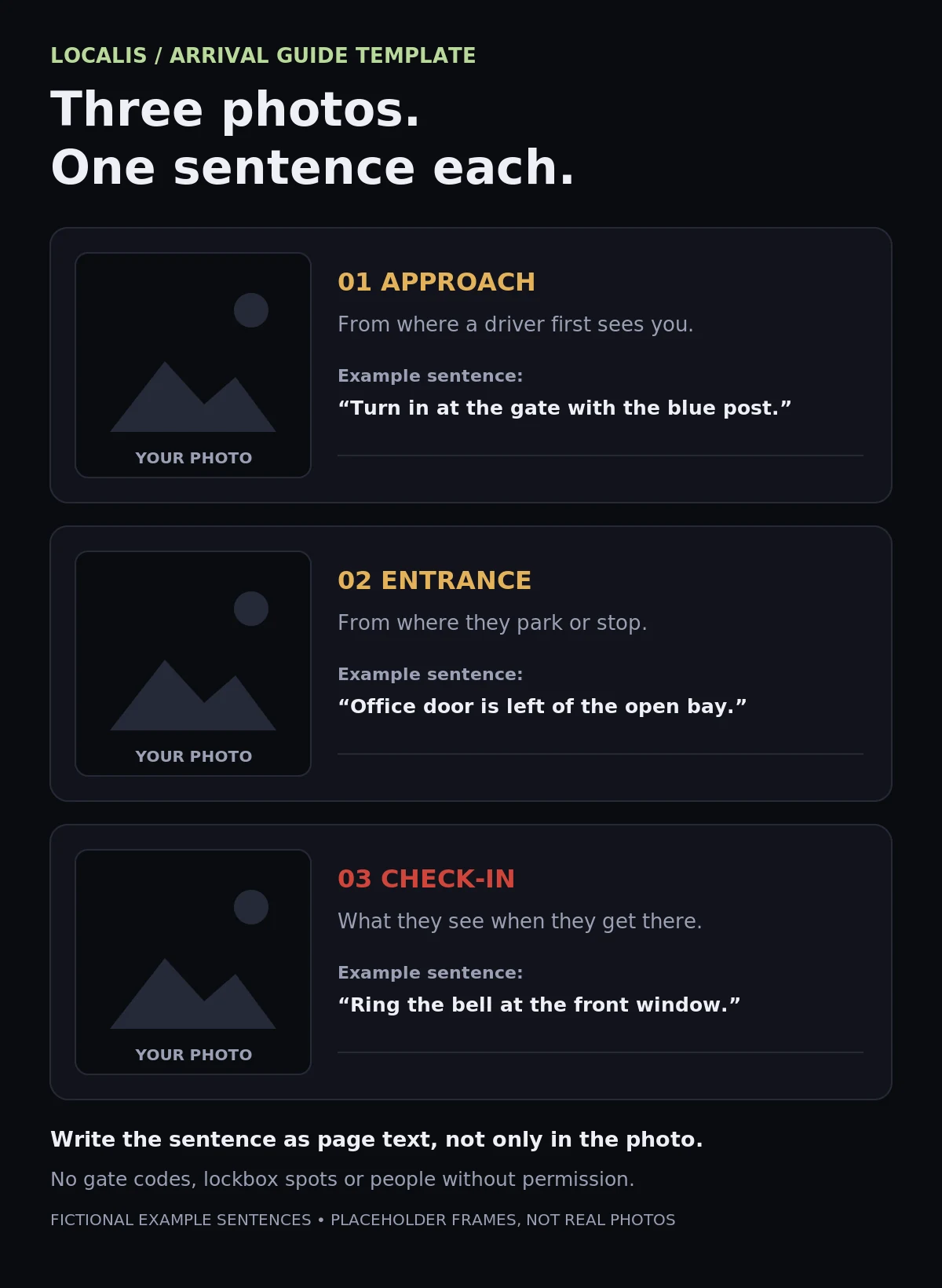
Now turn what you learned into three photos. Not a gallery, just three.
Photo 1: The approach. Taken from the street or driveway, from where a driver first sees your property. Show the sign, or the gate, or the landmark that tells them "turn here."
Photo 2: The entrance. Taken from where the customer parks or stops. Show the door, window, or bay they should head to, with nothing else competing.
Photo 3: Check-in. What they see when they get there: the counter, the window, the key drop, the "ring bell for service" sign. This is the photo that answers "Am I in the right place?"
Under each photo, write one sentence in plain text, like: "Turn in at the second driveway, past the tire rack." Write it as text on the page, not just words inside the picture, so it works for people using screen readers, slow connections, or a quick glance at a red light.
Google's own advice on exterior photos points the same way: it suggests photos that help customers recognize your business as they approach from different directions, taken from each direction they might come from (Google Business Profile Help: business-specific photos). Your three-photo guide is a sequence built on that: approach, entrance, check-in.
A fictional example
Fictional shop, not a real business: a collision shop at the back of a shared industrial lot. The pin is correct. But the first door customers see belongs to a cabinet maker next door.
Approach: "Enter the lot at the gate with the blue post. We're the last building on the right." Entrance: "Park in the spaces marked Customers. The office door is to the left of the open bay, not the bay itself." Check-in: "Ring the bell at the front window. If it's after hours, use the key drop slot under the window."
Nothing in that example required moving a pin.
Where to put it
- Your website's contact or directions page, with the three photos and their sentences.
- Your confirmation text or email, as one link, for customers who are about to visit.
- Your Google Business Profile photos, as long as they're real, current, and show your actual business.
What not to do
- Don't move a correct pin to force a better-looking route. Fix the arrival information instead.
- Don't publish a hidden address if you're a service-area business.
- Don't show security details such as gate codes, lockbox spots, or which door stays unlocked.
- Don't use photos of people without their permission, including customers in the background.
- Don't let it go stale. If you repaint, move the office, or change the gate, retake the photos.
Where Localis fits
Localis builds websites and keeps Google Business Profiles in shape for local shops, including the less glamorous stuff like making sure the contact page actually gets someone to the door. If you'd like help turning your arrival test into a clean directions page, get in touch.
Run the test first, though. Your first-time visitor will tell you more in 30 minutes than any of us could from a desk.
The shop in this article is fictional. Illustrations are artwork, not photos of a real business.